Docker Agent and Tiny Language Models: One Tool to Rule Them All
Or how to leverage the flexibility of
docker agentto do function calling with tiny language models (TLMs) without using complex tool schemas.
cagent has been renamed to docker agent — if you’re using Docker Desktop or Docker CE, you can launch it with the docker agent run <config> command. Docker Agent has become a Docker plugin, but you can also use it standalone: https://docker.github.io/docker-agent/getting-started/installation/.
If you’re using it from its Docker image, you’ll use this command: docker-agent run <config>.
I’m going to use this change as an opportunity to start a new series of articles explaining how to optimize docker agent configuration to account for the inherent constraints of tiny language models (TLMs), such as limited context windows.
For this article and the ones that follow, I’ll be using very small local language models, with Docker Model Runner and Agentic Docker Compose.
3 rules for using docker agent with TLMs
- Your agents’ models must support tools (function calling). Mainly because they’ll need to call tools to compensate for their limitations (e.g.: executing system commands for file I/O, or searching the web to compensate for their lack of knowledge).
- If you’re using language models with a reduced number of parameters (
<=9b), prefer using only a single agent in yourdocker agentconfiguration (small models aren’t great — or are too slow — when it comes to execution planning and task handoff). - TLMs have limited context windows, so you need to keep conversations short (the larger the conversation history grows, the slower the agent (and the model) will perform, because there’s too much data to process).
A few recommended models
I want to use docker agent to help me with technical topics (code snippet generation, project bootstrapping, documentation research…). The interesting models I’ve found for this type of task are:
- huggingface.co/unsloth/qwen3.5-9b-gguf
- huggingface.co/unsloth/qwen3.5-4b-gguf (if the 9b is too large for your machine)
- huggingface.co/Menlo/Jan-nano-gguf
There are others, but right now these are my favorites for function calling.
Now let’s get to the implementation, and first let’s look at our environment.
Setting up the runtime environment
I’m going to run docker agent using Agentic Docker Compose.
Here’s my Dockerfile:
FROM --platform=$BUILDPLATFORM docker/docker-agent:1.32.3 AS coding-agent

FROM --platform=$BUILDPLATFORM ubuntu:22.04 AS base

LABEL maintainer="@k33g_org"
ARG TARGETOS
ARG TARGETARCH

ARG USER_NAME=docker-agent-user

ARG GO_VERSION=1.25.4
ARG NODE_MAJOR=22

ARG DEBIAN_FRONTEND=noninteractive

ENV LANG=en_US.UTF-8
ENV LANGUAGE=en_US.UTF-8
ENV LC_COLLATE=C
ENV LC_CTYPE=en_US.UTF-8

# ------------------------------------
# Install Tools
# ------------------------------------
RUN <<EOF
apt-get update
apt-get install -y wget git
apt-get clean autoclean
apt-get autoremove --yes
rm -rf /var/lib/{apt,dpkg,cache,log}/
EOF

# ------------------------------------
# Install Go
# ------------------------------------
RUN <<EOF

wget https://golang.org/dl/go${GO_VERSION}.linux-${TARGETARCH}.tar.gz
tar -xvf go${GO_VERSION}.linux-${TARGETARCH}.tar.gz
mv go /usr/local
rm go${GO_VERSION}.linux-${TARGETARCH}.tar.gz
EOF

# ------------------------------------
# Set Environment Variables for Go
# ------------------------------------
ENV PATH="/usr/local/go/bin:/usr/local/go-tools/bin:${PATH}"
ENV SHELL=/bin/bash
ENV GOPATH="/usr/local/go-tools"
ENV GOROOT="/usr/local/go"

RUN <<EOF
go version
go install -v golang.org/x/tools/gopls@latest
go install -v github.com/ramya-rao-a/go-outline@latest
go install -v github.com/stamblerre/gocode@v1.0.0
go install -v github.com/mgechev/revive@v1.3.2
EOF

# ------------------------------------
# Install NodeJS
# ------------------------------------
ARG NODE_MAJOR
RUN <<EOF
apt-get update && apt-get install -y ca-certificates curl gnupg
curl -fsSL https://deb.nodesource.com/setup_${NODE_MAJOR}.x | bash -
apt-get install -y nodejs
EOF

# ------------------------------------
# Install docker-agent
# ------------------------------------
COPY --from=coding-agent /docker-agent /usr/local/bin/docker-agent

# ------------------------------------
# Create a new user
# ------------------------------------
RUN adduser ${USER_NAME}
# Set the working directory
WORKDIR /home/${USER_NAME}
# Set the user as the owner of the working directory
RUN chown -R ${USER_NAME}:${USER_NAME} /home/${USER_NAME}
# Switch to the regular user
USER ${USER_NAME}

# ------------------------------------
# Install OhMyBash
# ------------------------------------
RUN <<EOF
bash -c "$(curl -fsSL https://raw.githubusercontent.com/ohmybash/oh-my-bash/master/tools/install.sh)"
EOF
And finally my compose.yml file:
services:
  demo:
    build:
      context: .
      dockerfile: Dockerfile
    stdin_open: true
    tty: true
    command: bash
    volumes:
      - ./:/workspace
    working_dir: /workspace

    models:
      qwen3.5-9b:

models:

  qwen3.5-9b:
    model: huggingface.co/unsloth/qwen3.5-9b-gguf:Q4_K_M
    context_size: 16384
We now have everything we need for the environment — all that’s left is to configure our docker agent.
Configuring docker agent
Say I need an agent to generate Golang code snippets. With docker agent I’ll create the following configuration:
config.yaml:
agents:
  root:

    model: coder
    description: Golang Expert
    instruction: |
      You are Gopher, a Go programming specialist.
      You write clean, idiomatic Go code following standard conventions.
      You have access to tools: read, write, edit, bash, and Go-specific script tools.

    toolsets:
      - type: filesystem
      - type: shell

models:

  coder:
    provider: dmr
    model: huggingface.co/unsloth/qwen3.5-9b-gguf:Q4_K_M
    temperature: 0.0
    top_p: 0.95
    presence_penalty: 1.5
Note:
The filesystem and shell toolsets are pre-defined toolsets in docker agent that allow the agent to interact with the filesystem and execute shell commands.
Now, we’re ready to launch our agent.
First launch of the agent
I use the first command to launch the environment and the second to launch the agent:
docker compose run --rm --build demo
docker-agent run config.yaml
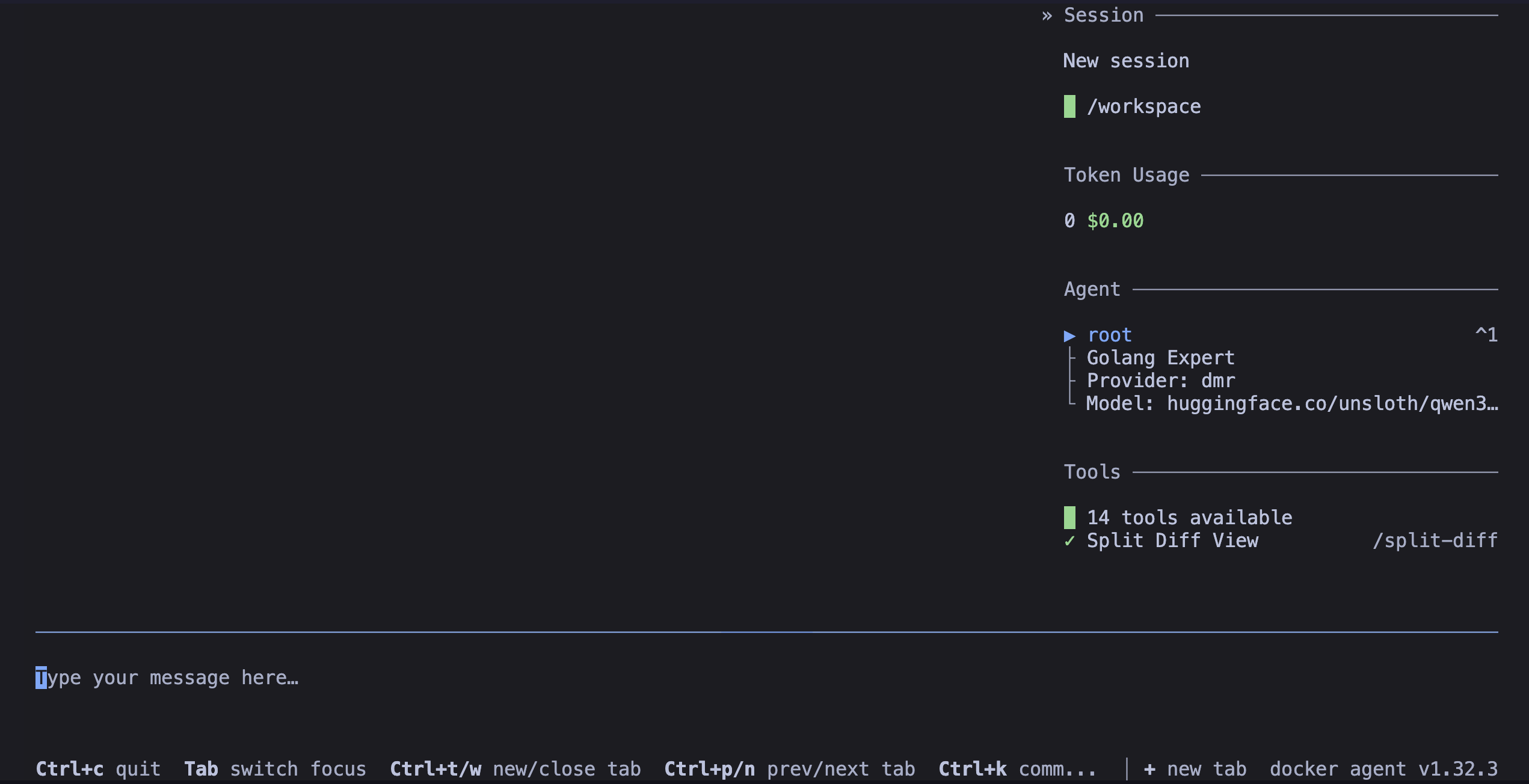
You can note that the filesystem and shell toolsets together represent 14 tools. The more tools you have, the longer the instructions for the model will be (because of more tool definitions). And on top of that, small models can struggle to pick the right tool when there are too many. Indeed, they don’t have a reputation for being excellent at function calling (though some, fortunately, stand out from the crowd).
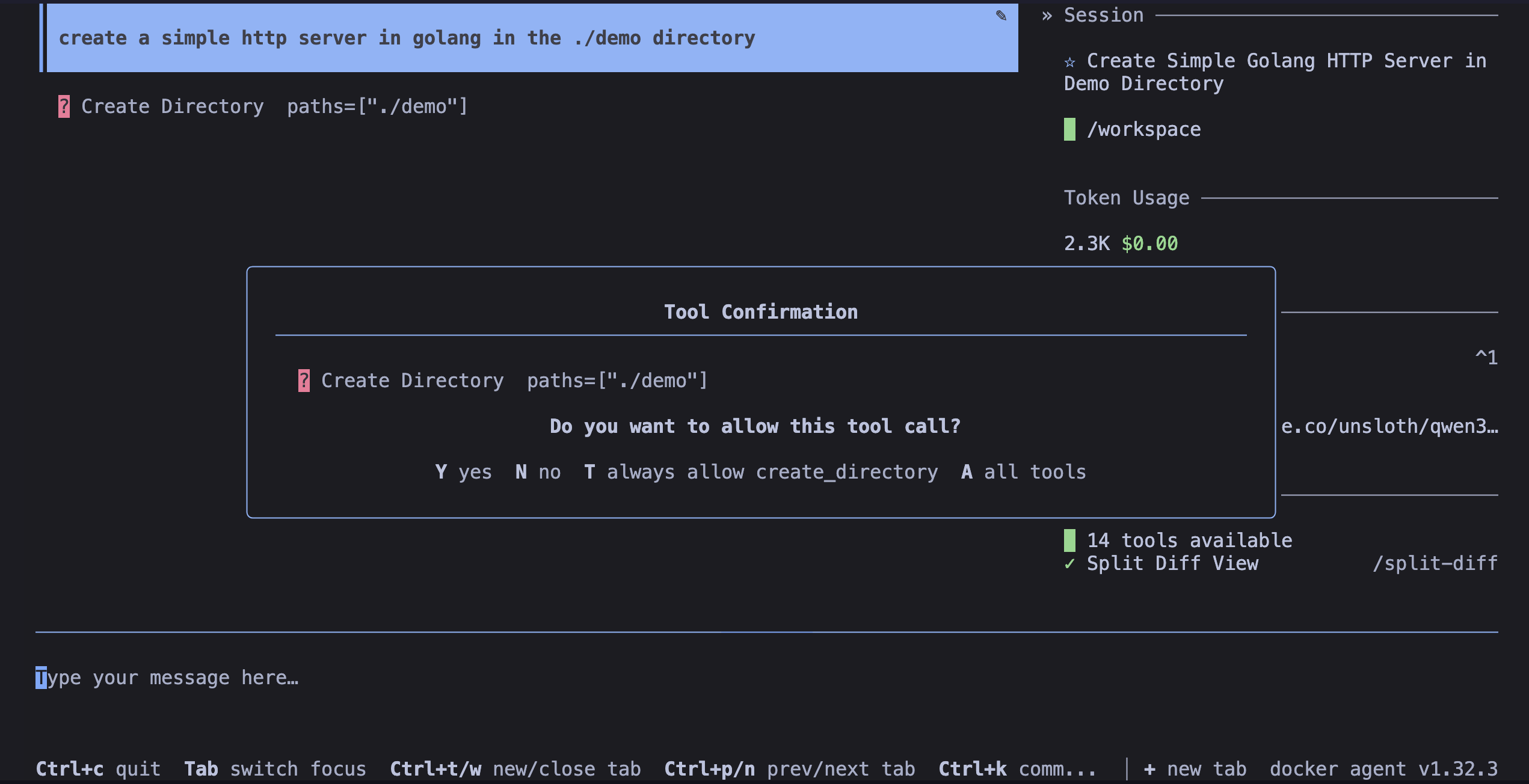
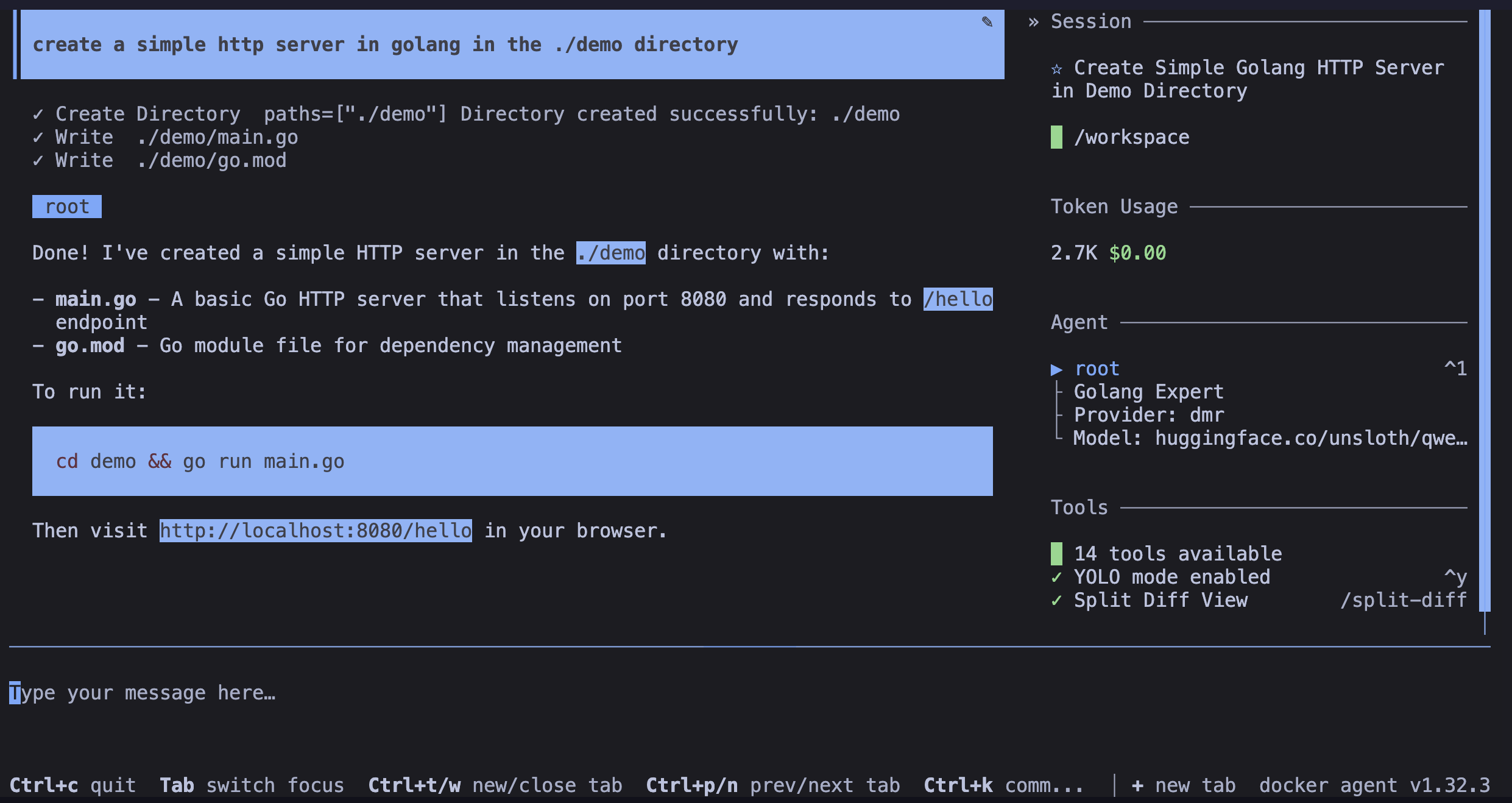
So I ask the agent to generate a Golang code snippet that creates a simple HTTP server. And you can see that the model was able to detect a “tool call”:
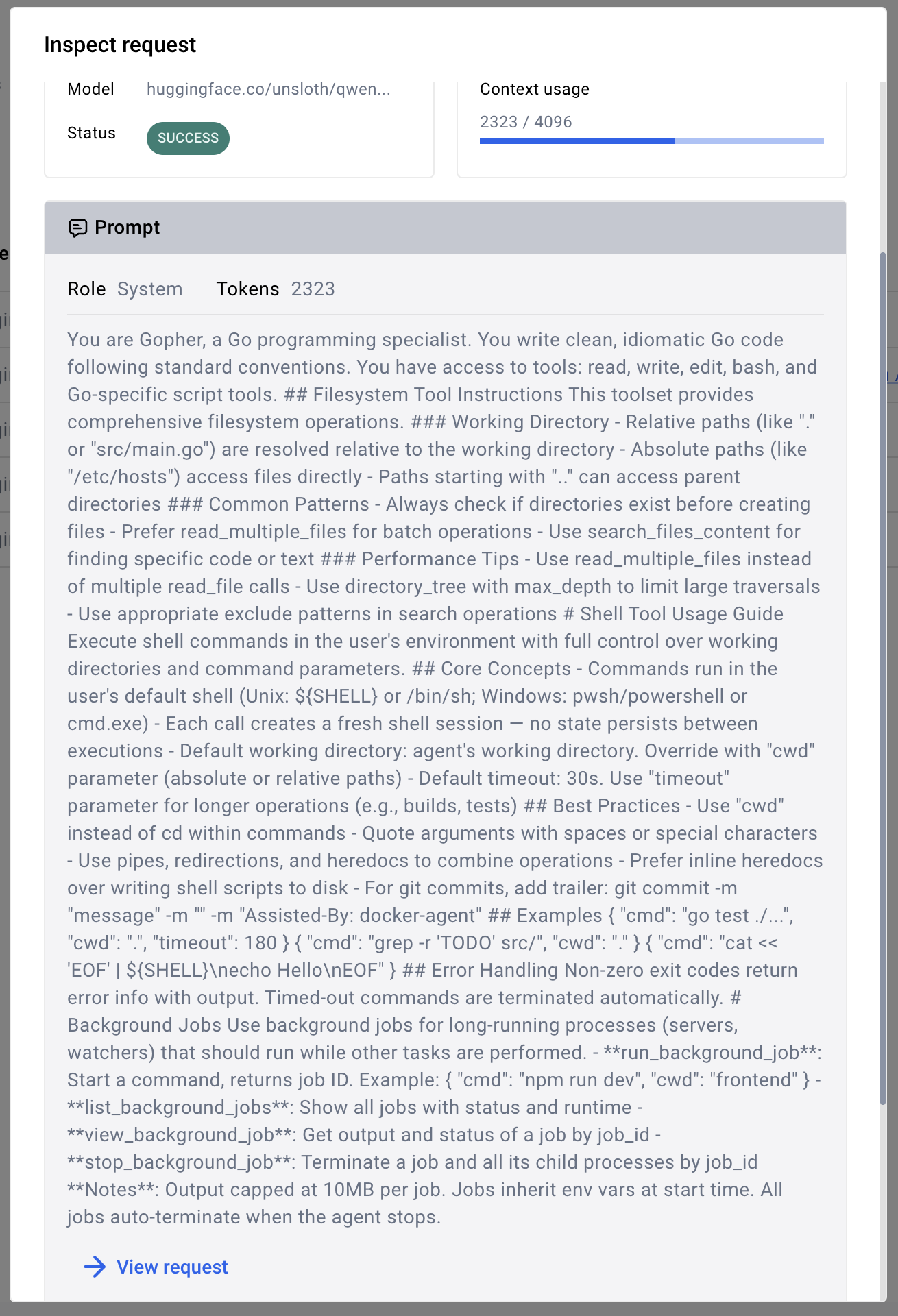
I went to inspect, using Docker Desktop, the request sent to the model, and you can see below part of the instructions sent to the model:
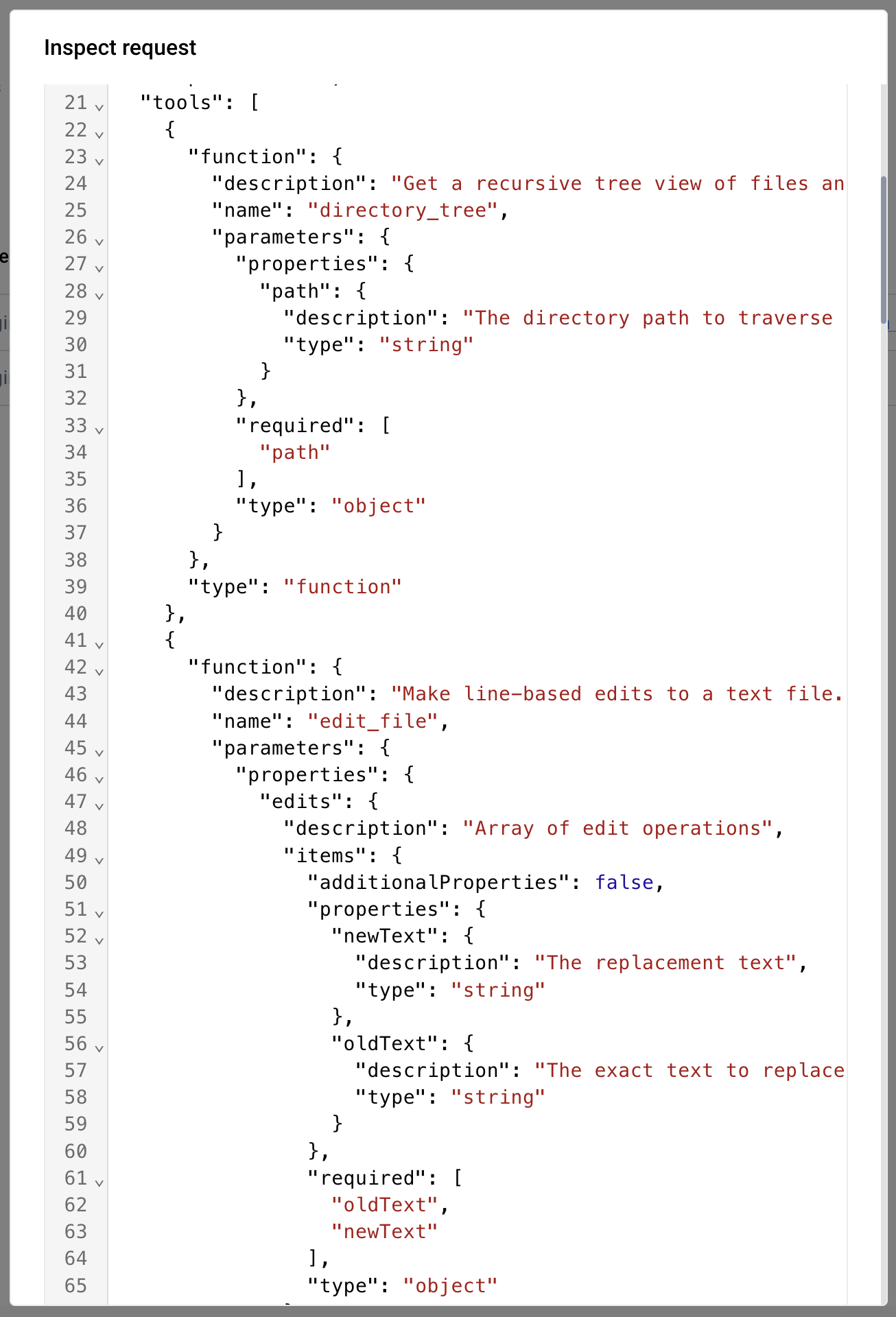
And the beginning of the list of tools available to the agent:
And at the end of the completion, you can see that we consumed 2.7k tokens (which keep piling up the conversation history):
But we can do better.
Token Hunting
I read this article by “Why CLI Tools Are Beating MCP for AI Agents” which explains that for function calling, you can skip complex tool schemas and favor a “CLI-first” approach — because language models are already very good at understanding and manipulating command-line commands thanks to their massive training on code and CLIs.
Article summary:
You just need to expose a “generic tool” of the execute_command type, with a minimal schema like this:
[
  {
    "type": "function",
    "function": {
      "name": "execute_command",
      "description": "Execute a shell command and return its stdout and stderr output.",
      "parameters": {
        "type": "object",
        "properties": {
          "command": {
            "type": "string",
            "description": "The shell command to execute."
          }
        },
        "required": ["command"]
      }
    }
  }
]
The model will retrieve the info from its knowledge. And depending on its capabilities, it will be able to use --help, --version, man, error output… as a “dynamic source of truth” about the CLI. The author, Jannik Reinhard, suggests encouraging the model by specifying:
"use first `<cli> --help` to understand the options, then run the command".
We’re going to put this theory into practice with docker agent.
New agent configuration for a “CLI-first” approach
There’s a toolset of type script in docker agent that allows exposing tools based on script execution. We’ll use this toolset to expose a generic execute_command tool that will allow our agent to execute any shell command.
I’ll therefore replace all 14 tools of type filesystem and shell with a single script-type tool with a generic execution command:
- type: script
  shell:
    execute_command:
      description: Execute a shell command and return its stdout and stderr output.
      args:
        command:
          description: The shell command to execute.
      cmd: |
        bash -c "$command" 2>&1
And here’s the complete agent configuration with this “CLI-first” approach, better.config.yaml:
agents:
  root:

    model: coder
    description: Golang Expert
    instruction: |
      You are Gopher, a Go programming specialist.
      You write clean, idiomatic Go code following standard conventions.
      You have access to tools: read, write, edit, bash, and Go-specific script tools.

    toolsets:

      - type: script
        shell:
          execute_command:
            description: Execute a shell command and return its stdout and stderr output.
            args:
              command:
                description: The shell command to execute.
            cmd: |
              bash -c "$command" 2>&1

models:

  coder:
    provider: dmr
    model: huggingface.co/unsloth/qwen3.5-9b-gguf:Q4_K_M
    temperature: 0.0
    top_p: 0.95
    presence_penalty: 1.5
Second launch of the agent with the new configuration
I relaunch the agent with the new configuration:
docker compose run --rm --build demo
docker-agent run better.config.yaml
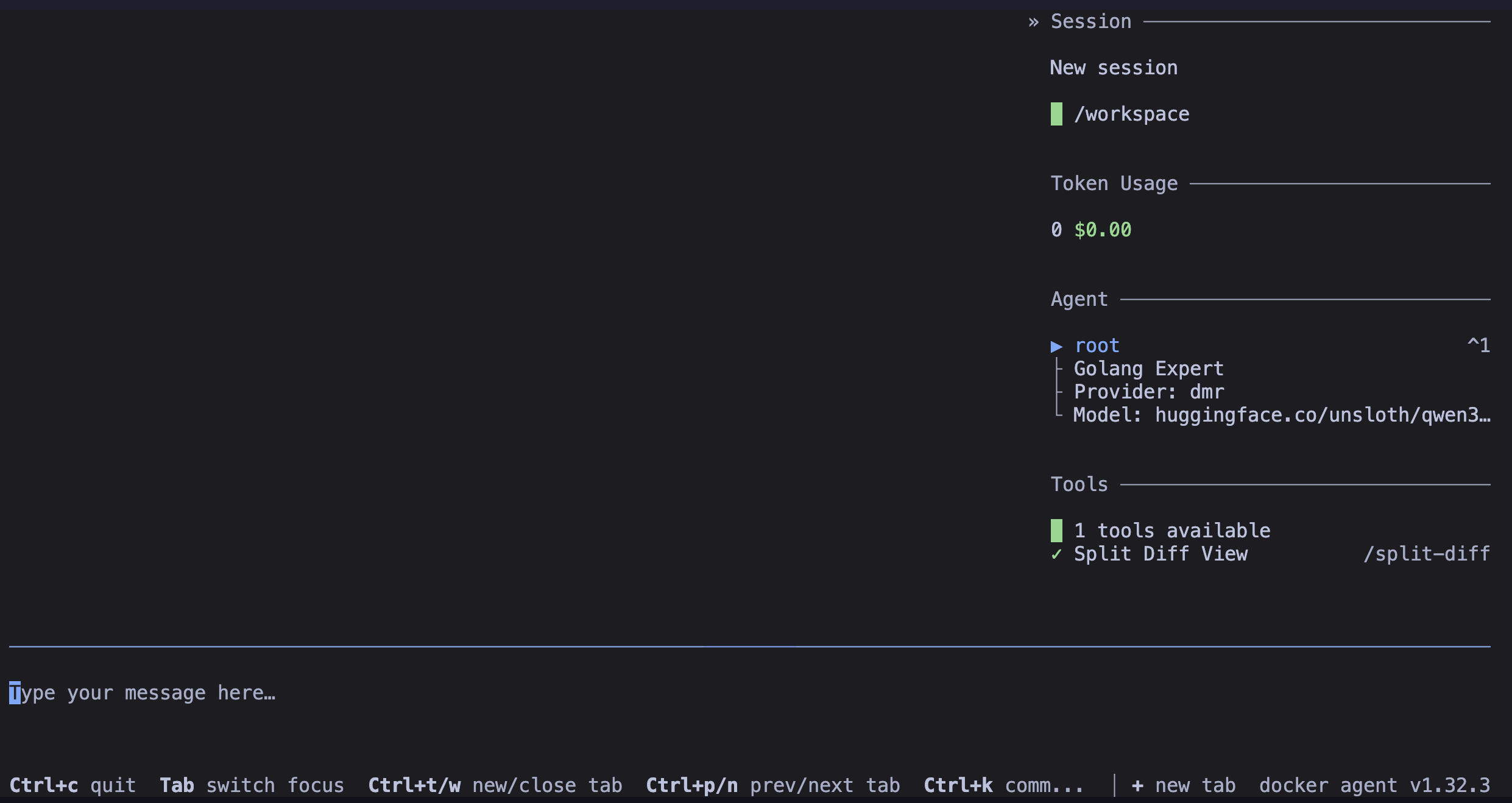
This time, you’ll notice we now have only one tool:
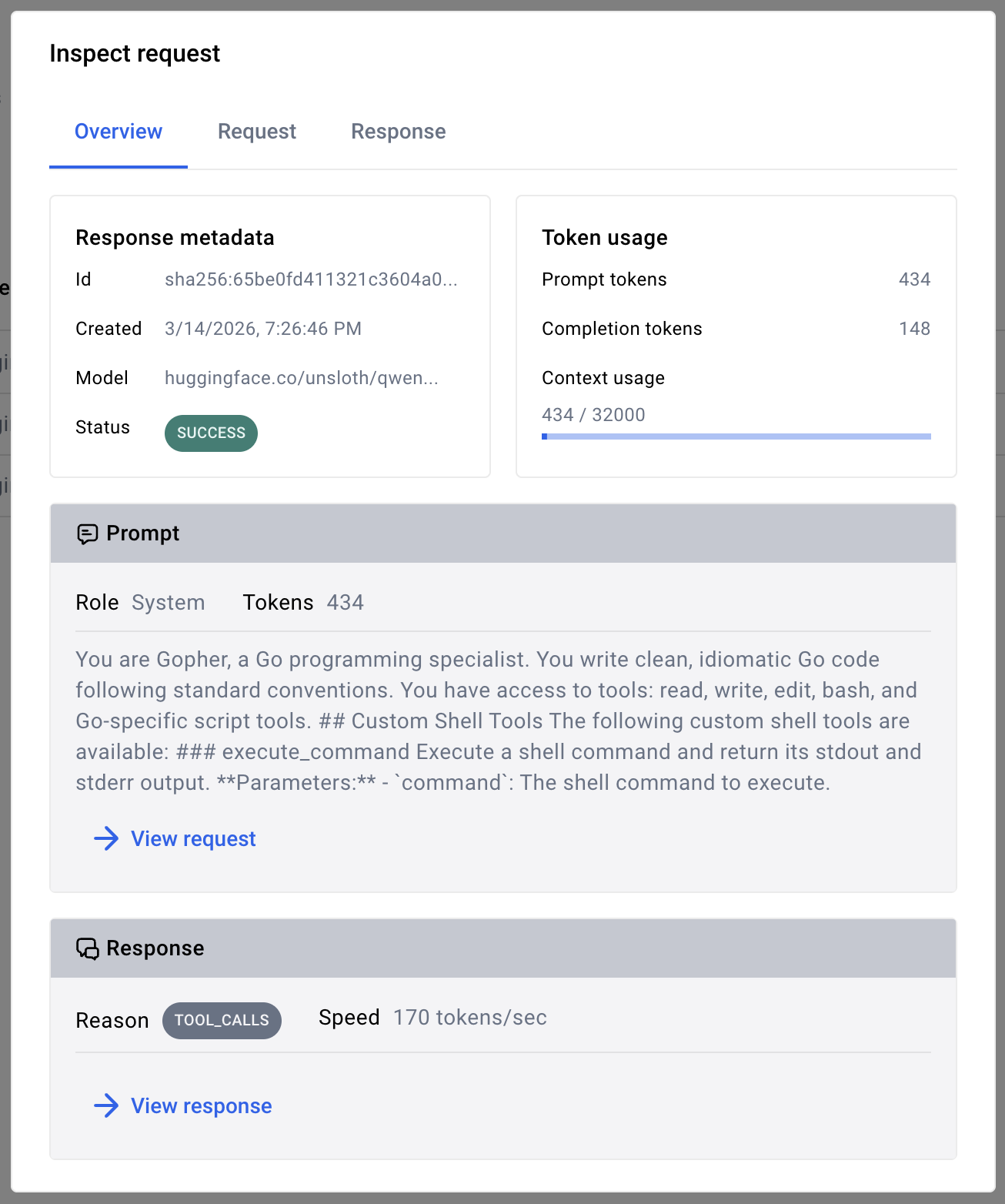
The instructions sent to the model are clearly lighter, and the model can focus on using this single generic execute_command tool for function calling:
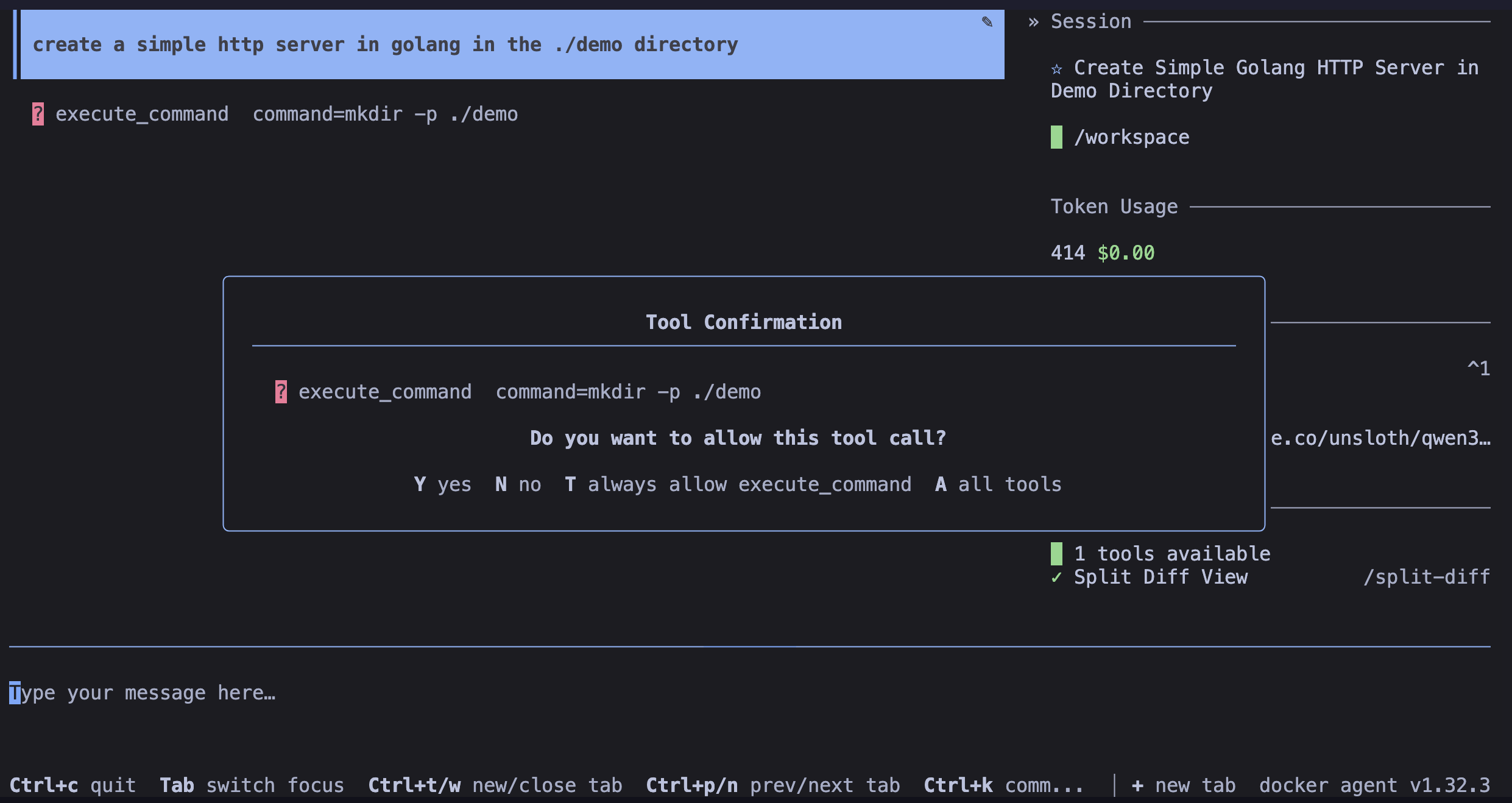
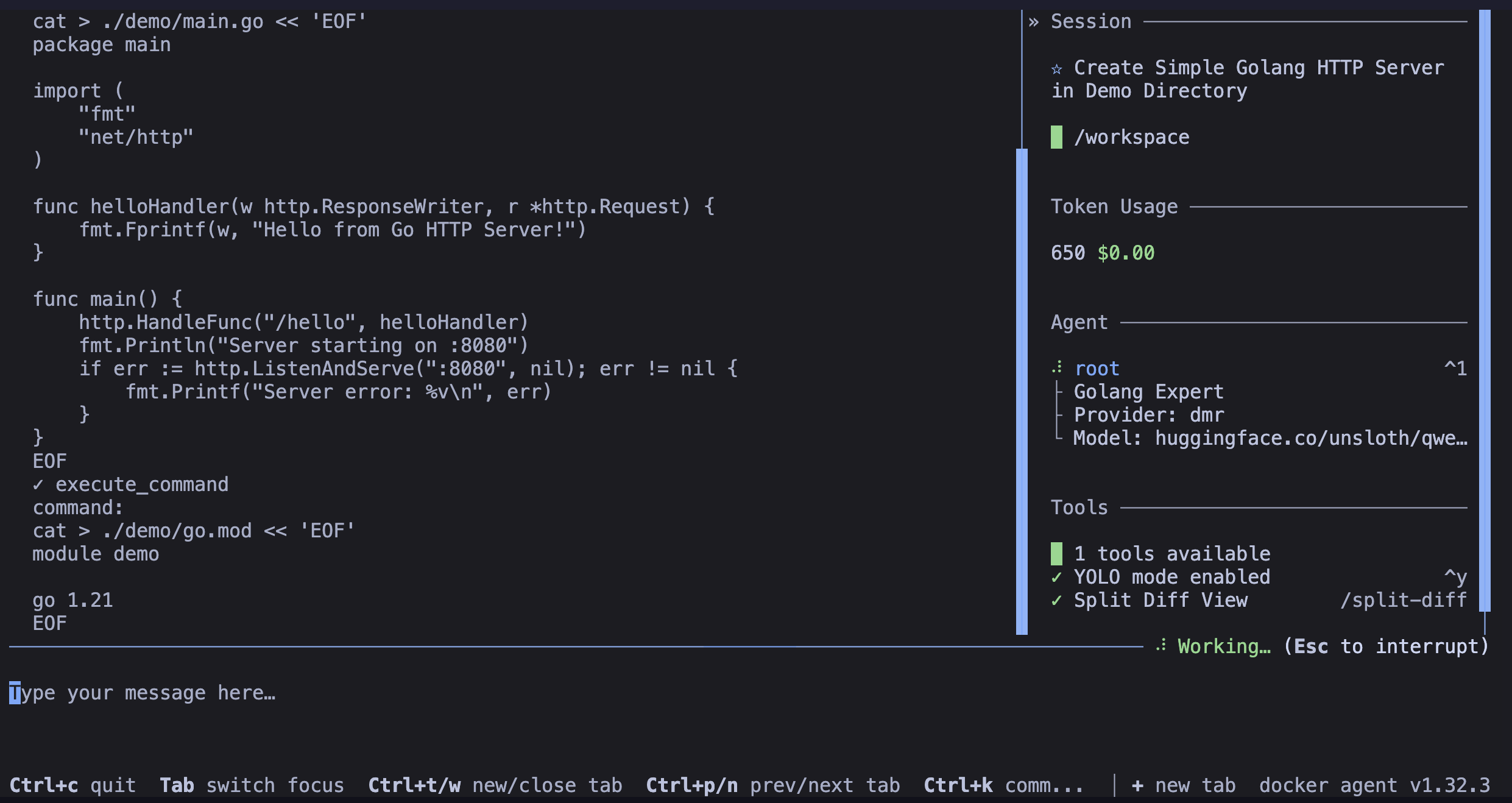
The agent will on its own use commands like mkdir, cat, … to get things done:
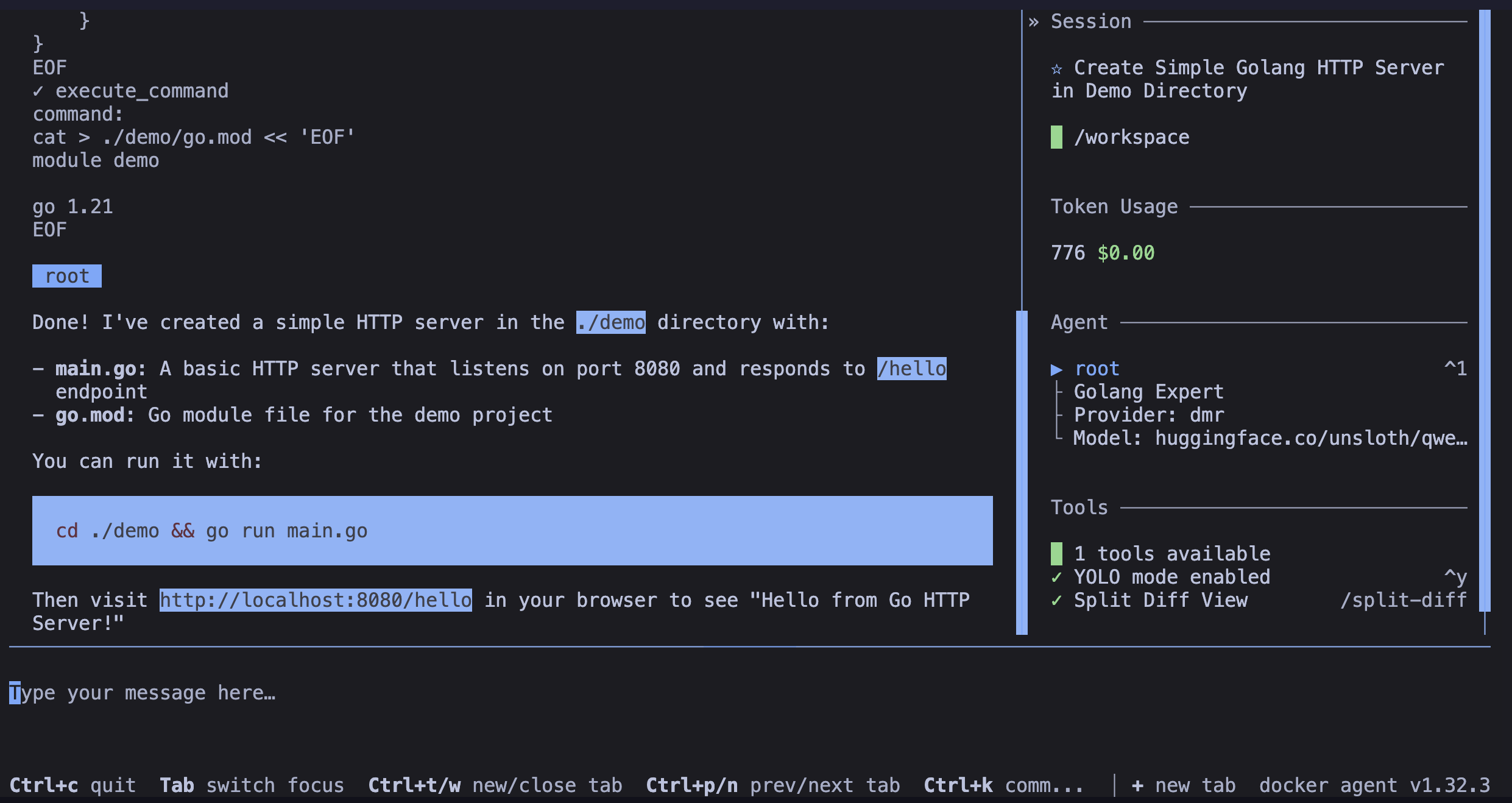
🎉 And the cherry on top — we went from 2.7k tokens consumed down to just 776 tokens for the same task:
Conclusion
I removed the 14 “built-in” tools to keep only one. And yet, the agent was able to do function calling and execute system commands. Of course, depending on the use case, you may still need to keep some “built-in” tools for specific tasks and also add your own custom tools. But we’ve just seen a way to optimize our configuration to adapt to the constraints of “Tiny Language Models”.
You can find the complete code from this article’s examples here: https://codeberg.org/k33g-blog/docker-agent-posts/src/branch/main/2026-03-14-cli-tools